Author : Zahir Hussain Shah
The recipient e-mail address was not found in the recipients e-mail system | Automatically update e-mail addresses based on e-mail address policy | Set-MailContact -EmailAddressPolicyEnabled $true
Description:
Microsoft Exchange environments, regardless of Exchange Server version often face a problem of their Email Contacts corruption or the email addresses related issues, where the Exchange Server(s) are managing the huge number of Address Lists created in their Messaging Infrastructure for different units of the company or different companies under the same group of companies umbrella, it should be noted that the environment, Im refereeing here, doesnt talk about GAL Segregation, because still at this time, while writing this article, GAL Segregation is not supported by Microsoft Exchange 2010 Server SP1.
Problem:
As I mentioned above, in this huge number of address list environment, sometime you see that the end-users complain that when they are sending email to the other companys contacts using the contacts they have cached in their Outlook, or they try to locate them from GAL or other Companys Address List in the Address Book, they receive the below error:

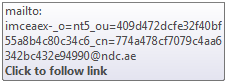
And if you move your mouse arrow on the contact, e.g. Adam Long, so you will see that the mailto: address of the contact has some garbage values, which tells that the contacts, which got cached on the client side, is corrupted, and even if you retry seavral time to locate it using Address Book, it will be the same:
Cause:
Due to the unavailability of Automatically update e-mail addresses based on e-mail address policy property settings for E-Mail Contact, the required e-mail addresses of particular E-mail Contact, sometimes Exchange Server fails to create the required number of e-mail addresses for particular contact.
Solution :
We will break-down this solution, into different phases as follows:
Set the Automatically update e-mail addresses based on e-mail address policy property settings for bulk of e-mail contacts in the Exchange environment.
Update the Address Lists
Remove the local user cache in Outlook for corrupted contact
Set the Automatically update e-mail addresses based on e-mail address policy property settings for bulk of e-mail contacts in the Exchange environment:
Go to Microsoft Exchange Management Shell, and execute the below PowerShell command, which will set the Automatically update e-mail addresses based on e-mail address policy property settings for all Exchange E-Mail Contact in the Exchange organization:
| [PS] C:Windowssystem32>Get-MailContact -ResultSize unlimited | Set-MailContact -EmailAddressPolicyEnabled $true |
Update the Address Lists / GAL
| [PS] C:Windowssystem32> Update-AddressList -Identity <ADDRESS-LIST-NAME> |
| [PS] C:Windowssystem32> Update-GlobalAddressList -Identity “Default Global Address List” |
Remove the local user cache in Outlook for corrupted
In Outlook 2002/2003/2007:
1. Open Outlook.
2. Open a new message window, then go to the File menu and choose New > Mail Message.
3. Type one or more letters of the recipient name or address; this will show memorized (cached) entries in a drop-down list.
4. Use the arrow keys on your keyboard to select the entry to be deleted. With the entry highlighted, press the DELETE key on your keyboard.
This removes the entry from your auto completion cache.
In Outlook 2010:
1. Switch to Contacts in the Navigation Pane.
2. Open the Suggested Contacts folder.
3. Find the entry you would like to delete.
4. Right-click the contact and choose Delete.

To delete all cached entries:
In Outlook 2010:
1. Switch to Contacts in the Navigation Pane.
2. Open the Suggested Contacts folder.
3. Select contacts you would like to delete. To select several entries, hold down CTRL or SHIFT on the keyboard while clicking. To select all contacts, press CTRL + A on the keyboard.
4. With the entries highlighted, press the DELETE key on your keyboard.
In Outlook 2002/2003/2007:
To reset the Outlook nickname cache, use the following steps that are appropriate for your version of Microsoft Windows. After you restart Outlook, Outlook generates a new nickname cache.
Microsoft Windows Vista / Windows 7
1. Exit Outlook.
2. Click Start > Search.
3. Click Advanced Search.
4. Check the box for Include non-indexed, hidden, and system files (might be slow).
5. Search for *.NK2 in the Name field.
6. Right-click the .NK2 file with the name of the profile that you want to reset, and then clickRename.
7. Rename the file to profile name.bak, and then press ENTER.
8. Exit Windows Explorer.
9. Restart Outlook.
Microsoft Windows XP
1. Exit Outlook.
2. Start Microsoft Windows Explorer.
3. On the Tools menu, click Folder Options, and then click the View tab.
4. Under Advanced Settings, select the Show hidden files and folders checkbox.
5. Click OK.
6. Click Start, point to Search, and then click All files or folders.
7. In the Search Companion box, type *.NK2 in the All or part of the file name box.
8. In the Look in box, select your local hard disk drive.
9. Select More Advanced Options and enable Search Hidden Files and Folders.
10. Click Search.
11. Right-click the .NK2 file with the name of the profile that you want to reset, and then click Rename.
12. Rename the file to profile name.bak, and then press ENTER.
13. Exit Windows Explorer.
14. Restart Outlook.
Microsoft Windows 2000
1. Exit Outlook.
2. Start Windows Explorer.
3. On the Tools menu, click Folder Options, and then click the View tab.
4. Under Advanced Settings, select the Show hidden files and folders checkbox.
5. Click OK.
6. Click Start, point to Search, and then click For Files or Folders.
7. In the Search for Files or Folders box, type *.NK2 in the File name box.
8. In the Look in box, select your local hard disk drive.
9. Click Search Now.
10. Right-click the .NK2 file with the name of the profile that you want to reset, and then click Rename.
11. Rename the file to profile name.bak, and then press ENTER.
12. Exit Windows Explorer.
13. Restart Outlook.
I hope this solution will fix your problem, and will allow you to run a smooth messaging environment with multiple number of Address Lists.
Cheers!,
Zahir Hussain Shah
Infrastructure Practice Consultant – Unified Communications
MCSE, MCTS, MCTIP Enterprise Administrator, ITIL
Blog: http://zahirshahblog.com | LinkedIn | Twitter
 Azure Hybrid & Cloud Migration Blog
Leave a comment