Author: Zahir Hussain Shah | MVP Exchange, CISSP

GAL Synchronization issues for Mail-Enabled Contacts using MIIS 2003 (Legacy IDM Solutions) with Windows Server 2008 Active Directory and Exchange Server 2010, and Troubleshooting the legacyExchangeDN attribute missing problems for Mail-Enabled Contacts
In this article, I will explain couple of important elements of GAL synchronization between different Active Directory forests, where one of the company is either importing or exporting Mail Enabled Contacts into their Active Directory, and then later creating Address List in Exchange Server for giving a handy way for their end-users for selecting different personnel from each company for making their life easier and their own life (Administrators) miserable.
I will divide this blog post into several pieces, so I can better explain the each relevant area of this solution in a more detailed manner.
Lets discuss the below:
– Different Solutions available for GAL Sync
– Known-Compatibility issues between different elements of GAL Synchronization process
– Mysteries of LegacyExchangeDN
– ADModify Tool A way to modify bulk-number of Active Directory objects in a more robust and efficient manner
– Some of the common Microsoft Outlook issues for OAB and Address Book
Different Solutions available for GAL Sync
In past, I posted a blog post about Microsoft Exchange GAL Sync between two different Active Directory Forest, which is a free-tool available in the market to sync the Exchange Address Book between two companies, but in this blog post I will be concentrating on Microsoft Solutions for GAL Sync between companies, so lets discuss Microsoft solutions for GAL Sync, Microsoft provided GAL Sync solution with first MIIS (Microsoft Identity Integration Services 2003) then we moved on with ILM 2007 (Microsoft Identity Life-cycle Manager 2007), and in the last we got Microsoft Forefront Identity Manager 2010, as of now writing this article, FIM 2010 is the latest product, which also got its R2 after its RTM version.
Known-Compatibility issues between different elements of GAL Synchronization process
Here now lets talk about MIIS first, with whom I ran into a problem recently, where I saw the root company as HUB importing information about Mail Enabled Users (mailboxes) from the source company, and then exporting all these Mail-Enabled Users (Mailboxes) information to destination company as Mail-Enabled Contacts in their Active Directory, where the destination company has created different Address List for each company with the Recipient-Filter for each company.
Problem with MIIS 2003:
When the root company exports the contacts to the Windows Server 2008 Active Directory, so then the LegacyExchangeDN attribute cannot be populated for these Mail-Enabled Contacts, which is by design, LegacyExchangeDN is/was stamped by the Exchange Recipient Update Services (RUS) which went away in Microsoft Exchange 2007 and is still not present in Microsoft Exchange 2010. In doing so MIIS 2003 would create the mail-enabled contact object, but the mail-settings that were updated by the RUS no longer occurred.
MIIS 2003 came out long before either Microsoft Exchange 2007 or Microsoft Exchange 2010. ILM 2007 was already out. What this means, is that if you are using MIIS 2003 to execute your GalSync solution to a Microsoft Exchange 2007 / 2010 Server, you will need to run an Exchange PowerShell CMDLET on the Microsoft Exchange Server after each Export. You can find more information on this process on our Microsoft Knowledge Base. If you are exporting to Microsoft Exchange 2010, then you could end up with Forest Level Mail-Enabled Contacts which are Read-Only.
Mysteries of LegacyExchangeDN
The use of X.500 addresses goes back to before Exchange 2000, when previous versions of Exchange maintained their own LDAP directory. Since Exchange 2000 the mailboxs X.500 address has been stored in thelegacyExchangeDN attribute in Active Directory. The legacyExchangeDN value is set when a mailbox is created, and includes the name of the Exchange administrative group where the mailbox belongs. LegacyExchangeDNvalues typically look like this:
/o=Organisation/ou=Administrative Group/cn= Recipients/cn=Username
Because the legacyExchangeDN value includes the administrative group name changes to admin group names will influence legacyExchangeDN values. For example when you upgrade from Exchange 2003 to Exchange 2007 your user-defined admin groups are replaced by a single admin group named Exchange Administrative Group (FYDIBOHF23SPDLT) existing mailboxes are unaffected, but mailboxes created after the upgrade will use the new admin group name in their legacyExchangeDN values. (Incidentally, if youve ever wondered why the Exchange 2007 admin group has this name, or what it means, its the text EXCHANGE12ROCKS, with all the characters shifted to the right by one!)
The current X.500 address of a mailbox can be retrieved from Active Directory using a tool such as ADSIEdit, or LDP.exe, or by using the Exchange Management Shell:
[PS] C:>Get-Mailbox juser | fl LegacyExchangeDN
LegacyExchangeDN : /o=Example/ou=Exchange Administrative Group (FYDIBOHF23SPDLT)/cn=Recipients/cn=juser
Note: For more information on LegacyExchagneDN attribute, visit this link from Ben Lye blog post.
Lets as we mentioned above that if the contacts were created by MIIS 2003 or any legacy version of Identity Management software, which has known compatibility issues with Exchange 2010 and Active Directory 2008, so LegacyExchagneDN attribute of a Mail-Enabled Contact will not be populated by design, so in this case, after you get all the contacts created by IDM software, and the LegacyExchangeDN Attribute is missing, your Microsoft Outlook client will not be able to send emails to these contacts, and when you will try to send emails to these contacts, while selecting them from the Address Book, immediately you will receive the below NDR from Exchange Server:
Note: If you will try to send email to these contacts on their email address from MSOutlook or send via OWA to these contacts, you can send email, but when you will select the contacts from the Address Book and will send email, you will get the same below NDR.
| Delivery has failed to these recipients or groups:Zahir Hussain Shah The e-mail address you entered couldn’t be found. Please check the recipient’s e-mail address and try to resend the message. If the problem continues, please contact your helpdesk.Diagnostic information for administrators:Generating server: ExchCAS1.domain.comIMCEAEX-_O=NT5_ou=409d472dcfe32f40bf55a8b4c80c34c6_cn=d85422fc3278e64494d1075bdbfb63c8@domain.net #550 5.1.1 RESOLVER.ADR.ExRecipNotFound; not found ## Original message headers: Received: from ExchMBX1.domain.com ([169.24.2.175]) by ExchCAS1.domain.com |
So now as we saw that the LegacyExchangeDN attribute of a Mail-Enabled Contact is necessary, and therefore now, we will discuss the various possible solutions to get this attribute populated, so our Microsoft Outlook users can send emails to these contacts, by selecting them from Address Book.
Below solutions can be used to populate the LegacyExchangeDN attribute for the Mail-Enabled Contacts:
1) [PS] C:Windowssystem32>Get-MailContact | Set-MailContact
2) [PS] C:Windowssystem32>Get-Recipient | Update-Recipient
3) If you have corrupted contacts, so you will probably receive warning, while running the above commands, so in this case, you can run the below command, while by-passing the warnings:
[PS] C:Windowssystem32>Get-MailContact -ResultSize unlimited | % {Write-host processing $_Set-MailContact identity $_ Verbose erroraction continue}
[PS] C:Windowssystem32>Get-Recipient -ResultSize unlimited | % {Write-host processing $_update-recipient identity $_ Verbose erroraction continue}
4) ADModify:
ADModify.NET is a tool primarily utilized by Exchange and Active Directory administrators to facilitate bulk user attribute modifications. See this link for launch details. You can use ADModify for populating / setting legacyExchangeDN attribute for bulk-number of Mail-Enabled Contacts located in a single OU or separated across the Active Directory OUs, you can download the ADModify tool from here. Im also pasting a snapshot of ADModify that how it looks, and before you modify the contacts using ADModify, please see the below guidance for LegacyExchangeDN and ADModify:
LegacyExchangeDN attribute structure:
Lets take an example, I will create a Mail-Enabled Contact with the Display Name of Zahir Hussain Shah, and where I will put the alias as zahirshah, and the external email address is set to zahirshah, so by default Exchange 2010 Server generates the legacyExchangeDN value as /o=CONTOSO/ou=Exchange Administrative Group (FYDIBOHF23SPDLT)/cn=Recipients/cn=Zahir Hussain Shah326.
Note: While appending legacyExchagneDN value for all the Mail-Enabled Contacts, what you should consider and take care before you perform changes using ADModify:
I have seen situation, where the ADModify used to append the legacyExchangeDN for thousands of Mail-Enabled contacts, and kept the custom value for adding the legacyExchangeDN value as /o=OrganizationName/ou=Exchange Administrative Group (FYDIBOHF23SPDLT)/cn=Recipients/cn=%’mailnickname’, which turned as biggest disaster, among the local Exchange Mailboxes and Mail-Enabled Contacts, and conflicted the legacyExchangeDN value between these two objects, where the legacyExchangeDN value for Mailboxes has become same (conflicted) as legacyExchagneDN value for Mail-Enabled Contacts.
Best Practice: So when you run ADModify for adding / changing legacyExchangeDN value for bulk-number of Mail Contacts, using CUSTOM attribute, always use displayName attribute to fill the legacyExchangeDN value, instead of mailNickname attribute, because it may conflict the with your Exchange Server mailboxes, and may create the below problems:
Possible issues, when the legacyExchangeDN value become same as Exchange Server Mailboxes legacyExchagneDN value:
Microsoft Outlook users will not be able to open Microsoft Outlook, and keep present Windows Security box for entering password.
Since the legacyExchagneDN value has become same for Mailboxes and Mail-Contacts, so when someone from your Exchange (user) will send an e-mail to another mailbox on your Exchange Server, it may happen that the same email will be delivered to another Mail-Contact in your group company or your partner, for which you have the conflicted legacyExchangeDN mail-contact.
Recommendation: You may use this value for ADModify while updating / changing legacyExchangeDN value for all contacts or users using Custom Attribute:
/o=OrganizationName/ou=Exchange Administrative Group (FYDIBOHF23SPDLT)/cn=Recipients/cn=%’displayName’
How ADModify looks like, when you update / change custom Active Directory User / Contact / Computer attribute: 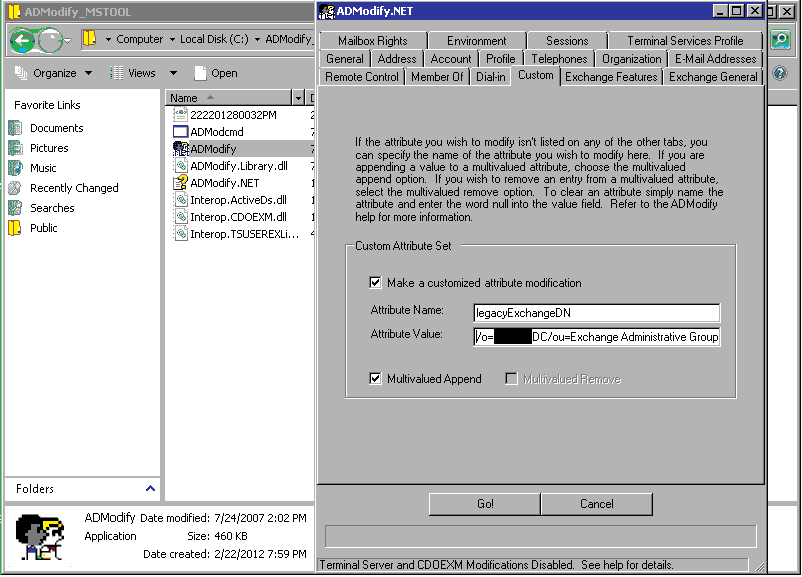 |
Some of the common Microsoft Outlook issues for OAB and Address Book
After you update the legacyExchangeDN for all the Mail-Enabled Contacts, users, may not be able to see the changes, and due to the cached contacts, which have been changed after you updated the legacyExchangeDN for these contacts, so you may probably see the below Microsoft Outlook OAB and Address Book related issues:
– Outlook Tool Tip Error: This e-mail message cannot be delivered to email because the e-mail address i no longer valid, because the cached contact has been corrupted and no longer valid due to the changes we made using ADModify, so in this case, the solution is to Clear the Auto-Complete for the user:
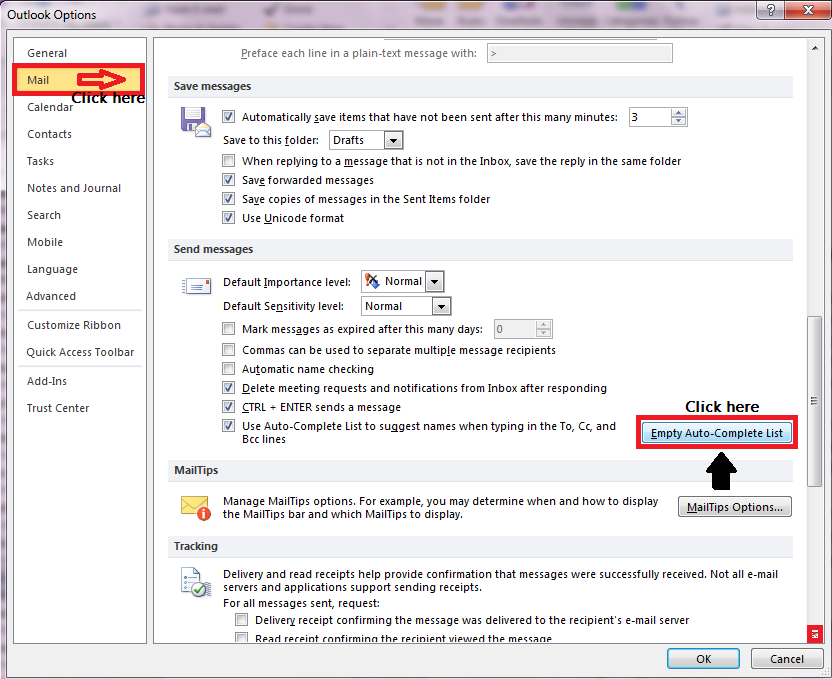
Note: After making the above changes for adding legacyExchangeDN try to execute Active Directory Replication, and download the address book for full changes.
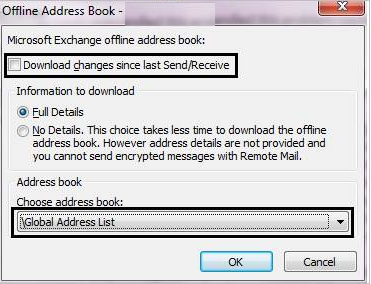
Applies to: Exchange 2003, Exchange 2007, Exchange 2010, Windows Server 2003-Active Directory, Windows Server 2008-Active Directory.
I hope this long article, but combining multiple solutions, will help you to fix your GAL Sync and Address Book issues for Mail-Enabled Contacts.
Cheers!


Leave a comment