Author: Zahir Hussain Shah
© All rights reserved by www.zahirshahblog.com
Physical to Virtual Conversion, Converting Physical Application Servers to Hyper-V Virtual Machine
What is P2V?
Converting Physical Servers into Virtual Machine is quite an interesting topic, which helps Organizations to keep up free their IT environment for the quantity of Physical Server boxes, by seeing the possibility of virtualizing their Application Servers, where ever is possible, but I’d also like to add here that, before you plan to for P2V for a Server Application running in your IT Infrastructure, you should evaluate that What is support, not what is possible, because, some Application Vendor, simply does not support virtualizing their Application, so in the event if you virtualize their Application for your production needs, you may face Application Support related issues.
Which tools, we can use to convert Physical Servers into VMs, especially for Hyper-V, and VMWare?
Although, there are verity of tools available for this function, but when initially, I digger into this for searching a quick solution for my problem, we had an legacy application running in our environment, for which we have lost support and technical references, so we thought it to convert it as VM, because we wanted to free up our Datacenter resources, so I searched for possible solution, and below solution, which I used to convert this machine as VM:
Step 1: Convert Physical Server to VM using VMWare Converter (Freeware :))
Step 2: Convert VMDK (VMWare Virtual Disk) to VHD (Hyper-V Virtual Disk)
Step 3: Create new VM on my Hyper-V Server, and attached earlier converted VHD as Virtual Disk for new VM
Download > VMWare Physical to VM Converter
Download > VMKD to VHD Converter
How to:
1) Install VMWare Converter on your Hyper-V Server
2) Share a Folder, which can be accessible from the target Physical Node
3) Open VMWare Converter, and click on Convert Machine:
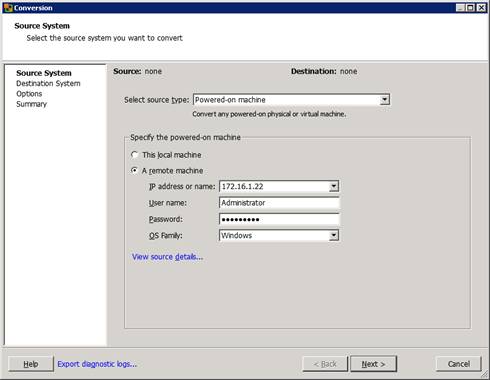
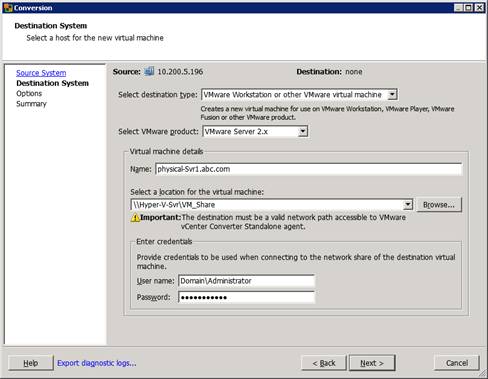
4) Provide details for destination Server, where converter will save the converted VMKD (Virtual Disk Files).
5) Options:
Selecting, which drives you want to include in the P2V Conversion:
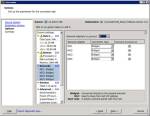
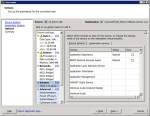
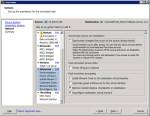
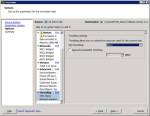
After finishing up, it will start the converting Physical Server to VMKD file.
6) Now, we will convert the VMKD file to VHD for Hyper-V VM:
Open you downloaded VMKDtoVHD Converter:
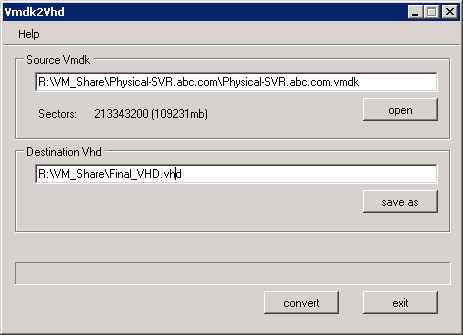
Click Convert, and it will take seavral mintues, to complete, and you will finally get it VHD, which you can use for Hyper-V.
7) Create new VM in Hyper-V and associate this newly created VHD file with this new VM and enjoy. J
I hope you have liked this article, and it will surely help you in converting your Physical boxes to VMs.
For any further support and clarification needed, please comment on this post.
Cheers!
Zahir Hussain Shah
Infrastructure Practice Consultant – Unified Communications
MCSE, MCTS, MCTIP Enterprise Administrator, CCNA, ITIL
Blog: http://zahirshahblog.com | LinkedIn | Twitter


Leave a comment