Author: Zahir Hussain Shah MVP Exchange Server
Exchange 2010 Disaster Recovery | Restore Exchange 2010 Information Store Backup | Restore Exchange 2010 Backup using Netbackup 7 | Create Recovery Database in Exchange 2010 | How to Restore Exchange 2010 Veritas Netbackup Backup
Description:
If we go back in times, while working with Exchange 2007 Disaster Recovery and Backup Restore, so you will come to know that in Exchange 2007 the Disaster Recovery and Information Store restore from backup tools, are different in design and nature, because with Exchange 2007, we use to restore backup jobs in Exchange Recovery Storage Groups, where Exchange 2007 was having Storage Groups level concept, but with Exchange 2010, we introduced Database instead of Storage Groups, because Exchange 2010 provides Database level failover and Backup and Restore.
Introduction of Recovery Database:
As I explained above that with Exchange 2010, we introduced Mailbox Recovery Database, which work similarly like Exchange 2010 Recovery Storage Group, in the case of Disaster Recovery and Exchange Information Store backup restore, we restore it to the Recovery Database, which holds the data, and then from Recovery Database, we take the needed stuff (Export) to the Mailbox (Original Users mailbox for which we are performing restore or secondary restore mailbox, which will hold the data on temporary basis).
Backup Types for Exchange 2010, lets assume we are using Symantec BackupExec 2010 or Veritas NetBackup 7 for Exchange 2010:
GRT This type of backup provides granular restore functionality, where you can restore a single email, without restoring the entire database / information store.
Information Store This type of restore comes into play when you perform full Disaster Recovery or when you dont have GRT Backup inplace.
In this article, I will walk you through that how to perform a full Exchange 2010 Disaster Recovery or how to restore Exchange Information Store backup restore using NetBackup 7.
Problem:
Lets assume that there is a user name Tom Kelly, who is part of Exchange 2010 Mailbox Database USERS_DB_1, and claiming that he is not able to find his email from 1st of Sep, 2011 to 5th of Oct, 2011, and he wants you to restore his emails.
Solutions:
Since we dont have GRT backup in place using NetBackup 7, so we have to restore the Exchange Information Store backup for USERS_DB_1 to the Exchange 2010 Recovery Database.
Step 1): Create the Recovery Database on Exchange 2010 Mailbox Server:
| New-MailboxDatabase -Recovery -Name “RecoveryDatabase” -Server MailboxServer -EdbFilePath “Y:\RDB\Database\USERS_DB_1.edb” -LogFolderPath “Y:\RDB\Logs” |
Important Notes here for Creating Recovery Database:
Provide the path of EDBFILEPATH and LOGFOLDERPATH to the driver, where you have good amount of disk space, because you will be restoring the full database.
While creating the Database, make sure that the -EdbFilePath, means the name of the Database should be the same as the database, which you will restore, for example, in our case, the user belongs to the USER_DB_1 Mailbox Database, so my EdbFilePath would be like this -EdbFilePath “Y:\RDB\Database\USERS_DB_1.edb”.
Note:
Once we have the database created, you will see the RecoveryDatabase will be created as dismounted, let it be dismounted, and we will go the next step.
Step 2): Restore the USER_DB_1 from the Information Store Backup from Veritas Netbackup 7.
Select the dates for the backup, which you will restore from the NetBackup console: and provide the ReocveryDatabase, which you created.
Note:
For Information about NetBackup 7 Backup / Restore for Exchange 2010, please visit this URL.
Make sure that the RecoveryDatabase has Make this database over-writable from the backup restore option is selected, which is a default settings.
Select Point-in-Time Recovery )Replay only restored log files), and commit the after last backup set is resotred.
Upon the successful restore is done, you will the logs and the edb files in the above specified location, which you selected to create the Recovery Database location.
Mounting of the Recovery Database:
Once the restore will finish, you will see that the RecoveryDatabase is automatically mounted, as part of the Restore Procedure.
Manually mounting database:
You can mount the RecoveryDatabase manually either from EMS or Exchange Management Console.
Note:
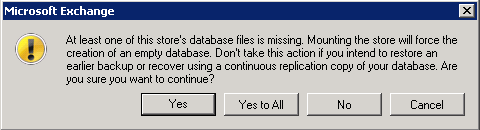
Sometimes, after the restore is done, and you try to manually mount the database, you will see the below errors:
At least one of this store’s database files is missing. Mounting the store will force the creation of an empty database.
The dialogue box containing the error is below:
So for this, you should the health of the database (.edb) files, using the below method:
eseutil /mh DB2.edb
The output of the command above returns a lot of data, I snipped the relevant portion of the output and placed it below:

The recovery database won’t mount until its state is listed as ‘Clean Shutdown‘. With no log files, performing a software recovery was not possible. Therefore we need to use the eseutil, as follows:
eseutil /p USER_DB_1.edb /t: Y:RDBDatabaseUSERS_DB_1.edb
/t location of temporary database needs to get create
/p creates the another database against the database you are running the command for
eseutil, may take extensive amount of time, based on the database size, so be patient :)
Once the repair process of eseutil completes, you should run the below diagnostic against the RecoveryDatabase, to check the database state, now it should come in Clearn Shutdown state.
eseutil /mh DB2.edb
This time the state of my database changed to ‘Clean Shutdown‘ as you can see below:

As we confirmed above that the RecoveryDatabase is now in Clean Shutdown state, so we can mount the database without any problems and errors.
If the RecoveryDatabase gets mounted successfully, now we can move to the next and last step of this solution aricle, to extract the data from the RecoveryDatabase to the target user mailbox or secondary mailbox.
Step 3): Extracting mailbox contents from the RecoveryDatabase for Tom Kellys mailbox and export it to another temporary mailbox.
3.1 Lets first see what we have restored in RecoveryDatabase, by running the below CMDLet:
| Get-MailboxStatistics -Database RecoveryDatabase More specific to Tom Kellys mailbox:Get-MailboxStatistics -Database RecoveryDatabase | Where {$_.DisplayName -eq “Tom kelly”}  |
The above command tells that there is a mailbox for the TOM KELLY in the RecoveryDatabase, and with having this amount of items, so now we can move to the next level, which is to export the data to the temporary Mailbox.
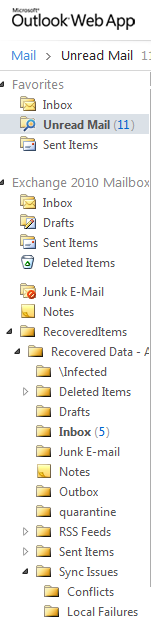
| Restore-Mailbox -RecoveryMailbox “Tom Kelly” -Identity <temporary_Mailbox_Name> -RecoveryDatabase RecoveryDatabase -TargetFolder “RecoveredItems” -StartDate 9/01/2011 -EndDate 10/05/2011 |
As you can see in the below image, that Toms email contents have successfully restored to the temporary mailbox. J
I hope you have enjoyed reading this article, and it will help you to perform Exchange 2010 Disaster Recovery and Backup Retore using NetBackup 7. :)
Cheers!
Zahir Hussain Shah
MVP – Exchange Server
Infrastructure Practice Consultant – Unified Communications
MCSE, MCTS, MCTIP Enterprise Administrator, CCNA, ITIL
Blog: http://zahirshahblog.com | LinkedIn | Twitter
 Azure Hybrid & Cloud Migration Blog
Leave a comment