It’s been sometime now that I have not updated my blog with some new stuff, so let’s try with something which might be delicious for your taste-buds.
There are many occasions when an Exchange admin is asked to setup on-demand mailbox out of office reminders for some especial type of employees, I believe you must have got the idea what I’m talking about. :) These set of employees sometime forget to setup out of office reminders before starting their vacations, and there could also be a requirement where you are asked to set standardized out of office for all users.
Setting up employees out of office reminders automatically without any active tool in-between both ERP and Exchange Server can bring some challenges, but thanks to Windows PowerShell which makes it easier to read data exported by ERP system and then setup employees out of office message as per corporate standards.
Let’s divide our blog post into three step as follows:
- Exporting employees leave details like mail alias or SAMAccountName, leave start date, and leave end date to a central UNC share path where your ERP system is going to export these details as CSV tab delimiter format.
- Beautifying your Out Of Office message with formatting the HTML/HTM used by PowerShell script
- Running the script and testing
- Scheduling the PowerShell script to run as per your decided schedule
Now we will deep dive into these above mentioned steps for more details:
Step 1: Exporting employee leave from ERP system into a CSV File
You need to configure your ERP system or any other sort of system which has employee leave related data to export following sort of employee leave information into a CSV format (tab delimiter). This location should be accessible by PowerShell script, from my experience I would recommend it should be C:\ drive where I have seen in past that majority of PowerShell related stuff gets handy when they are located in C:\ drive. You can turn on the sharing on this folder for your ERP system to access it when it will export the CSV file. Make a note here that CSV file format is very important, it should be CSV tab delimiter so our PowerShell script can read it.
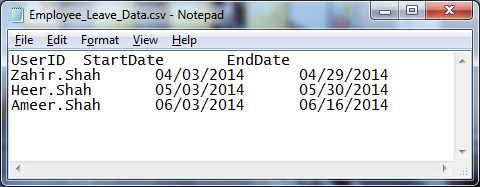
Step 2: Beautifying your Out Of Office message with formatting the HTML/HTM used by PowerShell script
You can add, delete and change the formatting of this HTM file according to your corporate standards and needs.
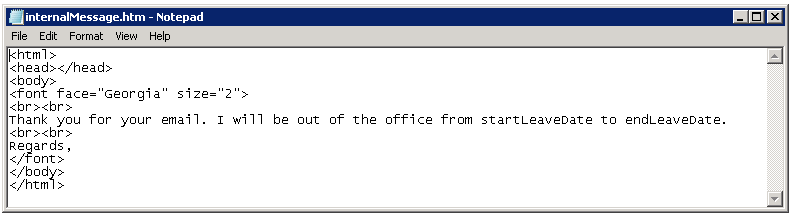
Step 3: Running the PowerShell Script against the Employee_Leave_Data.CSV file we exported from ERP System
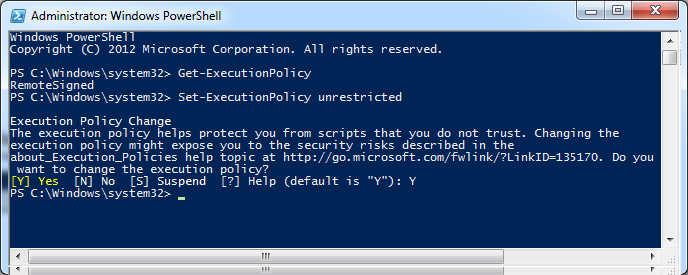
Note: Make sure your PowerShell execution policy is set to unrestricted for allowing our PS1 script to execute on the machine your are running on.
You can follow the below steps to make sure your PowerShell execution policy is set to unrestricted.
Note: Copy the below PowerShell script to your machine and make sure to save it as “.PS1”.
Note: Also not to forget for changing the file paths in the script if you’re keeping the exported CSV file and HTM file other than the root directory where the script is located.
##############################################
# This Script will be used to set the Out of Office reply for the Users
##############################################
##### Pass the following parameters ####
#Date Format: “7/15/2012 17:00:00”
##### Import csv file with all users going on leave
$usersOnLeave = Import-Csv “C:\Sample_Leave_Data.CSV” -Delimiter `t
##### To pass the credentials – not required #####
#$UserCredential = Get-Credential
##### Define the session variable to connect to #####
$Session = New-PSSession –ConfigurationName Microsoft.Exchange –ConnectionUri http://ExchangeServer.domain.com/PowerShell/
##### Import the session #####
Import-PSSession $Session -AllowClobber
##### Load Internal Message Text file
$internalMsg = Get-Content “C:\internalMessage.htm”
foreach($user in $usersOnLeave | select UserID, StartDate, EndDate)
{
$emailAlias = $user.UserID
##### Get the value of AutoReplyState #####
$autoReply = Get-MailboxAutoReplyConfiguration -Identity $emailAlias | select autoreplystate
##### Convert it to String #####
$autoReply = -join $autoReply
##### Check if AutoReplyState is Disabled then schedule it #####
if ($autoReply -eq “@{AutoReplyState=Disabled}”)
{
$startLeaveDate = $user.StartDate+” 06:00:00″
$endLeaveDate = $user.EndDate+” 23:30:00″
$startLeaveDatemsg = $user.StartDate
$endLeaveDatemsg = $user.EndDate
$internalMsg1 = $internalMsg -replace ‘startLeaveDate’,$startLeaveDatemsg
$internalMsg2 = $internalMsg1 -replace ‘endLeaveDate’,$endLeaveDatemsg
$objMailbox = Get-Mailbox $emailAlias
$objMailbox | Set-MailboxAutoreplyConfiguration -AutoReplyState Scheduled -StartTime $startLeaveDate -EndTime $endLeaveDate -InternalMessage $internalMsg2
Add-Content .\log.txt “Out of Office Set for $emailAlias”
}
}
Step 4: Scheduling the PowerShell script to run as per your decided schedule
You can create a brand new schedule task on the server preferably on the Exchange Server from where you would like to kick off this script. While creating the task schedule job make sure you take care of the following:
Schedule (Run):You can make any combinations as you like for the script to run on the scheduled interval
Security Options:Run with highest privileges
Program/Script: C:\Windows\System32\WindowsPowerShell\v1.0\powershell.exe
Add arguments (optional): -Command C:\PowerShellScript.ps1
Summary
After all this in place you should be able to configure automatic Exchange mailbox users out of office reminders with the help of exporting employees leave data from your ERP system. It is not mandatory that you should have ERP system to get this employee information, it can also be extracted from MS Excel file or any other program or software your company is using to keep record of employees leave. Once the CSV file is available either run the script manually or schedule it to run for setting the OOF reminders for end-users.
I hope this would help you to bring some automation to your environment along with corporate standards and awareness between employees.
Thank you for reading this blog, you have a wonderful day!
 Azure Hybrid & Cloud Migration Blog