How to setup Hierarchical Address Book in Microsoft Exchange Server 2010
If Email has become the blood for business communications in the todays business world, so it wont be wrong to say that, providing Email Services to the end-users along with robust Address Book service is the added Oxygen in this blood. Address Book gives a nifty way to end-users for locating their desired recipients from their own department, from the other departments from the same company, or sometime from the partners company. Since all of us, cannot remember the everyones email address, so it is essential for us to provide sound Address Book functionality to our end-users, to make their communication experience less time-consuming, and more productive.
What is Hierarchical Address Book?
Today, I will walk you through the Hierarchical Address Book feature, introduced within Microsoft Exchange Server 2010, Hierarchical Address Book feature provides the end-users to locate and find personnel based on the Organizational Structure, created by the Email Administrator.
Below figure tells about the basic layout of Hierarchical Address Book for Zairosoft Int.
Lets go and hit the iceberg Below steps will guide you, how you can build your own Hierarchical Address Book for your company:
Note: In this article, I will assume that you know how to create a Email Distribution Group in Microsoft Exchange Server, but if you dont know, you can use below EMS CMDLet to see how to create one for you:
1) Lets first create the Zairosoft Root, you can use the below EMS command to create the Distribution Group:
| New-DistributionGroup -Name “Zairosoft” -DisplayName “Zairosoft” -Alias “Zairosoft” -OrganizationalUnit “UAE.Zairosoft.com/ORG” -SamAccountName “Zairosoft” -Type “Distribution” |
2) Since, now we have created the Zairosoft Distribution Group, now we set this as Root for the Hierarchical Address Book, you can use the below CMDLet to make the Zairosoft Distribution Group as the Root:
| Set-OrganizationConfig -HierarchicalAddressBookRoot “Zairosoft” |
Now we will set the Zairosoft Distribution Group as Hierarchical Group, which tells the system that this is going to be a Distribution Group, which will contain other Distribution Group, and at the event of drill down, it will show the other member Distribution Group in the Address Book.
| Set-Group -Identity “Zairosoft” -IsHierarchicalGroup $true |
3) Now as shown in the above image, you can see that Zairosoft (Root) contains three sub-distribution groups, as Administrative, Technical, and Operations, so we will create the three more Distribution Group, and will add them in the Zairosoft Distribution Group, but using the below CMDLets:
Add-DistributionGroupMember -Identity "Zairosoft" -Member "Administrative" Add-DistributionGroupMember -Identity "Zairosoft" -Member "Technical" Add-DistributionGroupMember -Identity "Zairosoft" -Member "Operations" |
So our Zairosoft Distribution Group, will look like as follows:
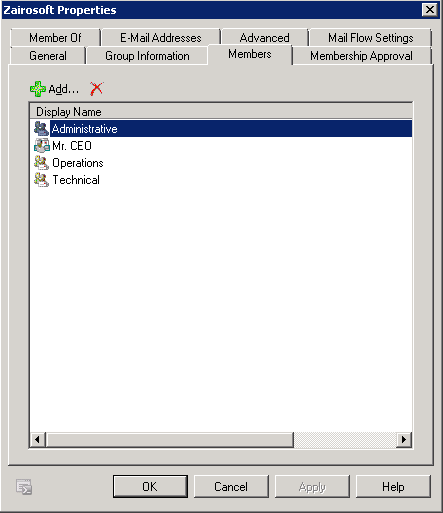
Interesting stuff: You can also add any individual Mailbox in the root Zairosoft, it could be any higher level personeel, e.g. CEO, so everybody will see CEO as the Root of all employees in the company, and if you want to make CEO Mailbox as the top one showing in the Hierarchical Address Book for Zairosoft (ROOT) istribution group, so you can use the below CMDLet:
| Set-User -Identity “CEO@zairosoft.com” -SeniorityIndex 100
And set others SeniorityIndex as less, so CEO mailbox will be showing as first: Set-User -Identity “administrative@zairosoft.com” -SeniorityIndex 100 Set-User -Identity “Technical@zairosoft.com” -SeniorityIndex 75 Set-User -Identity “Operations@zairosoft.com” -SeniorityIndex 50 |
4) Since, our Administrative, Technical, and Operations Distribution Groups are containing other distribution groups, so we need to set their identity as Hierarchical Group, so Exchange will now and it will show them as Hierarchical Groups, which will show others sub-groups in the event of drilling-down them:
| Set-Group -Identity “Administrative” -IsHierarchicalGroup $trueSet-Group -Identity “Technical” -IsHierarchicalGroup $trueSet-Group -Identity “Operations” -IsHierarchicalGroup $true |
5) Now use the above method for creating more distribution groups, making them member of their corssponding partent groups, and if they will contain sub-groups, so you have to set them as Hierachical Group, below snapshot will show you my configuration:
| Zairosoft (Root)\ | Zairosoft\Administrative\IS&TD\ | Zairosoft\Administrative\IS&TD\Infrastrucutre Team\ |
| Zairosoft\Administrative\IS&TDIS&T\Infrastrucutre Team\IS&TD-Systems\ | ||
After this all configuration, you have to restart Address Book Service, and File Distribution Service of Microsoft Exchange Server 2010, remember, its an optional step, where you are forcing the clients to download the changes, made by you.
Zairosoft Hierarchical Address Book:
I hope you enjoyed reading this article, and it will help you to provide better and enhanced Address Book feature to your end-users.
Cheers!
 Azure Hybrid & Cloud Migration Blog
Leave a comment