Embracing the cloud is everywhere, either in one or another way you will find the cloud computing discussion or its usage hitting door next to you. Last year Microsoft released plenty of products including Windows Server 2012 and System Center 2012 family products. Windows Server 2012 is first Windows Server operating system which is built from the cloud up, means while building this operating system all its features and functionalities were designed in such way that it can provide cloud ready based platform. While combing Windows Server 2012 with System Center family product it is now possible to build our own provide cloud with hell lot of automation, optimization and multi-tenancy.
Okay we had an enough intro about these two products, and now we will discuss the topics related to this blog post. Recently I happened to downgrade a running Windows Server 2012 Hyper-V Failover Cluster, during we were doing this activity we found few errors on the way to downgrade the cluster nodes, so I thought it would be nice to share with you folks on my blog.
In this blog article, we will be covering following listed topics:
- Choosing correct Windows Server 2012 license for your Hypervisor
- Downgrading Windows Server 2012 Failover Cluster from Datacenter to Standard Edition
- Troubleshooting Windows Server 2012 Cluster Validation issues
Choosing correct Windows Server 2012 license for your Hypervisor (Standard V/S Datacenter)
With Windows Server 2012 Microsoft changes its licensing schema where now Windows Server Enterprise edition is no longer available. And Windows Server is now licensed for Standard and Datacenter Edition. By means of feature wise comparison both license editions are pretty much as same. Unlike old licensing model where MCS (Microsoft Clustering Services) was only available in Enterprise edition of Windows Server is not the case with Windows Server 2012. As we said both edition standard and datacenter provides same features.
The differentiating factor is the licensing rights, where Windows Server Standard Edition gives you only two Virtual Machine free licenses. While Windows Server Datacenter edition license provides unlimited number of Virtual Machine licenses running the same server. These virtualization rights are not different from Hyper-V, VMware or Citrix Xen Server, the same applies to all types of hypervisor application vendors.
So the question is: Which Windows Server license is good economically and technically for your server operating system needs?
To summarize the recommendation for both edition, look at the below table:
|
Windows Server Standard Edition |
Windows Server Datacenter Edition |
|
| Hypervisor Use | Limited number of virtual machine use, where number of running virtual machines are from 1 to 8 or are less than 10 then Windows Server Standard edition is a good choice for your server. | If your company is highly mature for virtualization, where majority of all applications are virtualized, and number of virtual machine running on each hypervisor server are 10 or more than 10, then Windows Server Datacenter Edition license is should be your choice. This recommendation is for all hypervisors regardless of which Hypervisor product your company uses. |
| Member Server and Application Use | Any Microsoft or third-party application servers. If any of your application needs Microsoft Clustering Service running on it, you can still use Windows Server Standard Edition license. | Windows Server Datacenter is not at all good choice for any application other than hypervisor products. Because feature wise Standard edition has everything to provide supported platform for your application. |
Downgrading Windows Server 2012 Failover Cluster from Datacenter to Standard Edition
Recently I downgraded a production Windows Server 2012 Hyper-V Failover cluster, where all five cluster nodes were installed as Windows Server 2012 Datacenter Edition. And customer initially after installing datacenter edition realized that they don’t need Windows Server datacenter edition at this moment. And since there is no downgrade possible where we can use go back to standard edition, so the only way left for us is to first remove each cluster node from the cluster one by one and reinstall the operating system as standard edition.
Since it was a Windows Server 2012 failover cluster, which provides new Dynamic Quorum Mode, by having odd number of cluster nodes doesn’t need disk majority and configures as node majority. By using this dynamic quorum model cluster allows you to bring the cluster work load on to a single cluster node in case all other cluster node fails. So in order to continue our downgrade activity, we performed the following steps in sequence:
For this example we will consider that we have five node Windows Server 2012 failover cluster on which we have also installed Hyper-V role.
- First we will migrate all the highly available virtual machines from all four cluster nodes to single cluster node.
- Go to Failover Cluster Manager and right-click cluster node go to more actions menu and click on Evict. This will remove the cluster node from the cluster gracefully. Follow the same procedure with all four nodes and remove them from the cluster.
- Now re-install the operating system on all the formatted nodes in the cluster and install their respective drivers. If you want you can keep the node names same or different it doesn’t matter on the cluster.
- Once your machines are ready and you mapped the CSV and all other LUNs back to the node and get them verified by seeing them in the disk management, then you can proceed with the next step of adding these newly formatted nodes back to the cluster.
- For adding the nodes back to the cluster we have to go the cluster node which is still part of the cluster and we will expand the cluster and from there in the nodes container we will right click and add the node.
- Once you add all the remaining four nodes back to the cluster perform the same procedure of evicting the node from the cluster then format OS and re-add the node back to the cluster.
Troubleshooting Windows Server 2012 Cluster Validation issues (Validate Microsoft MPIO-based disks failed)
While performing the above downgrading activity I came across cluster validation issue, which I thought would worth to discuss here. This problem I faced with Windows Server 2012 RTM edition with most up-to-date windows updates installed. During cluster validation we received problem related to Microsoft MPIO-based disks failed.
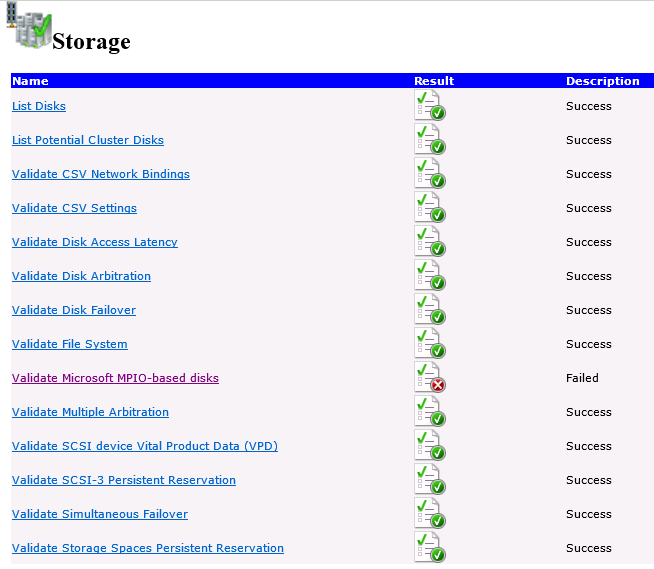
While closely looking at this problem I found that Microsoft DSM QFE number for all four nodes were same but only for one node as you can see in the below screen-shot is different among all:
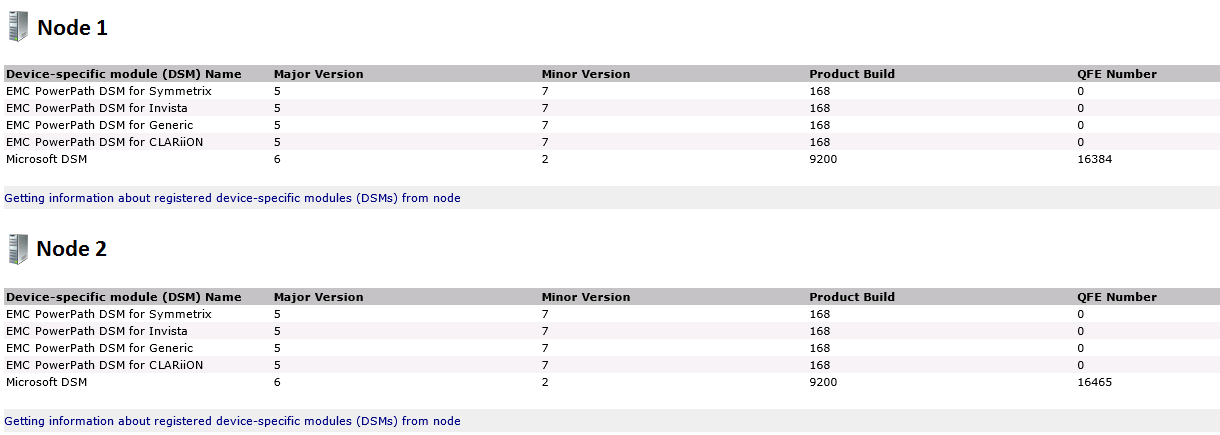
In the above screen-shot you can see that node 1 QFE number is 16384 while node to has 16465, which is causing of mismatch QFE numbers. And why these numbers are different is because of the different patch level of the these two nodes. Node 1 QFE number is lower because it doesn’t have the all same patches installed as same as node 1. While finding the required patch which is making this issue, we found that “Windows8-RT-KB2785094-x64” didn’t get installed and due to this there was a mismatch patch update status on all the nodes.
Solution:
As a solution to fix this problem we tried a lot to install the “Windows8-RT-KB2785094-x64” on node 1, but due to some patching issue we were not able to install it on node 1. So finally we had to remove the same patch on all the nodes, and then validated the cluster and this time it successfully get validated without any problem. After the monthly patches released in the month of April, 2013 we are now seeing that “Windows8-RT-KB2785094-x64” is now got installed on all the nodes in addition to the all other patches released in the month of April, 2013.
I hope you will find this blog post helpful for downgrading your Windows Server 2012 cluster.
Cheers,
 Azure Hybrid & Cloud Migration Blog
Leave a comment