Windows Server 2012 Hyper-V is a box of chocolates for Hyper-V and Private Cloud administrator and customers. Recently while I was building a production Windows Server 2012 Hyper-V Cluster I came across a small problem which was not letting me to bring my Hyper-V Replica Broker resource online. And when I looked at the problem I found that the CNO for the Hyper-V Replica Broker computer resources was failing to complete.
Below this the error and resolution which you can follow to get this problem fixed in minutes.
Error:
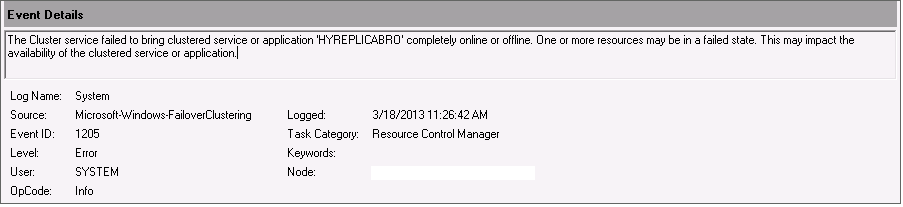
The Cluster service failed to bring clustered service or application ‘HYREPLICABRO’ completed online or offline. One or more resources may be in a failed state. This may impact the availability of the clustered service or application.
Cause / Solution:
The error you are getting is because your Windows Server 2012 Hyper-V base cluster CNO, which is the cluster name doesn’t have the required permission to create new computer object for your Hyper-V Replica Broker computer resource account. By default all your computer object’s resources for your Windows Server 2012 cluster gets created in the same Active Directory OU where your cluster nodes computer objects are located.
For getting this work and ensuring that your Hyper-V Replica Broker cluster resources comes online once you hit finish, so we have to make sure that your Windows Server 2012 Hyper-V base cluster CNO (Cluster Network Object) has permission to create computer object in the respective Active Directory organizational unit where your parent Hyper-V cluster CNO is located.
For giving permission to your Windows Server 2012 Hyper-V cluster CNO on the Active Directory OU where your Hyper-V Cluster Nodes are located, please follow the below outlined steps:
1) Go to Active Directory Users and Computers (Advance Mode)
2) Right click on the OU where your all server computer accounts reside
3) Go to Security tab and click on Advance button.
4) In the advance NTFS ACL section add your Windows Server 2012 Hyper-V computer account, and then double click on the permission entry which will take you to the all permission area.
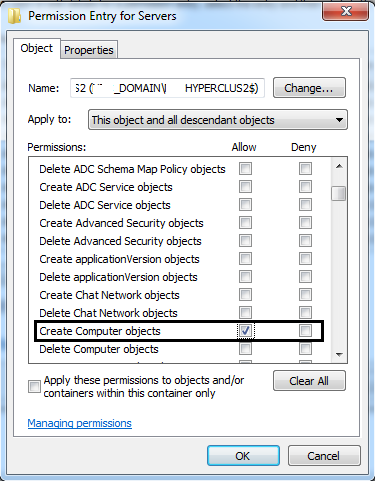
5) In the all permission area scroll down and find the entry named “Create Computer objects” and check the box ALLOW.
Now if you have already failed Hyper-V Replica Broker resource then delete it, and re-create with the same name and give it a try and this time you will see that it will come online just like that. :)
Cheers!
 Azure Hybrid & Cloud Migration Blog
Leave a comment