Author: Zahir Hussain Shah | MVP Exchange Server
Problem:
The problem can be divided into two possible scenarios, in the first scenario, we could point out the problem, when the Hyper-V Failover Cluster Nodes are installed with McAfee VSE 8.7 with Patch 5 or VSE Pach 1, then with the presence of McAfee, which malfunctions along with the CSV drivers, and turn them into some state, where Re-Directed Access is always set on the CSV disks.
And the another problem can be identified when, we have Windows Server 2008 R2 Hyper-V Server configured, for Virtual Machine backups with any VSS based backup solution, such as Symantec NetBackup 7.1.4, and you are facing performance bottlenecks for the CSV hosted virtual machines. You must have noticed that all the time your CSV disk are showing the status as Back-up in progress, redirected access.
Cause:
Now lets understand, what is re-directed access of CSV disks? When your CSV disk is running under re-directed access mode, all the I/O to the specified CSV volume are directed over the network, and which causes the performance of the I/Os for the particular virtual machine.
Since now we know what is redirected mode of CSV, now lets figure it out why this happens?
The cause of this problem, can also be existed due to the two following cases, in the first case, if you have McAfee VSE 8.7 with Patch 5 or VSE 8.8 with Patch 1 is installed on Hyper-V cluster nodes, then McAfee filter driver (mfehidk.sys) is using decimal points in the altitude to help in identifying upgrade scenarios for their product. The Cluster CSV filter only accepts whole numbers and puts the drives in redirected access mode when it sees this decimal value.
In the second case, when you use VSS based solution, such as Symantec NetBackup for backing Hyper-V virtual machine, then just like any VSS based solution, the Netbackup creates the snapshot of the data, which gets created in the drive of the data source, e.g. D:System Volume. Whenever this snapshot creation of the data (VM) fails, the snapshot log file stays in the System volume folder of the source CSV disk.
To verify that do we have any failed VSS snapshot in the disk, you can enable all the hidden system files from the Folder Options, and then go to the CSV volume (ClusterStorageVolume1), and then open the System Volume folder, and assign NTFS permission to your user to open the folder. From here you can see all the system volume files.
Whenever you will have failed VSS snapshot log files in the System Volume of the CSV volume, then Failover Cluster Manager, and Microsoft Clustering Services will consider that, the CSV is going through a backup process, which will keep the CSV disk under backup-in progress, re-directed access.
Solution:
The solution for this problem can be divided into following two sections:
1. Patching Hyper-V failover cluster nodes with following type of two patches (in-order).
a. If you do have McAfee A/V version 8.7 patch 5 or 8.8 patch 1 installed on the cluster nodes, so therefore we need to install the below Microsoft hotfix, Please reach below KB from McAfee for the same problem, identified in the failover cluster nodes, when you have McAfee installed on your Hyper-V failover cluster nodes.
b. To fix the McAfee related malfunctioning of Cluster CSV, we need to install the hotfix on Hyper-V Failover Cluster Nodes. You can download this hotix from here.
2. Make sure that your VSS backup solution always completes the job, and whenever there is any Hyper-V virtual machine backup fails, you go back to the Hyper-V Cluster Node, and clear the failed VSS snapshot.
To clear the failed VSS snapshot, you can do the following:
a. Open Elevated Command Prompt on the Cluster Node.
b. Go to the CSV Volume, from where you need to clear the VSS failed snapshot. E.g. C:ClsuterStorageVolume1
c. Type Diskshadow and hit enter.
d. Then type delete shadows all.
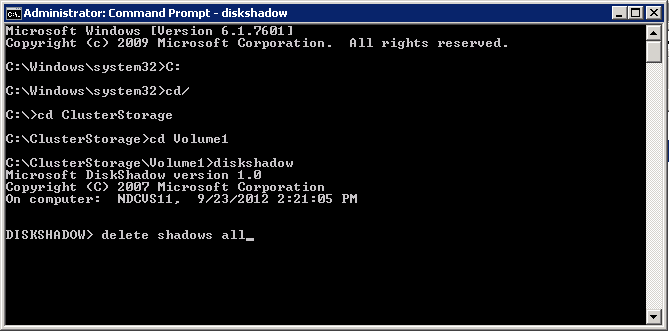
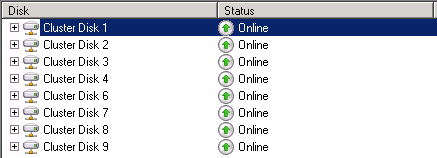
If there will be any failed snapshot copy, it will be failed, and then if you refresh the CSV status of Volume1, or move it to any other cluster node, you will see that the status of the CSV will be changed to Online.
2. Another good way for ensuring that the VM backup jobs get completed normally, is to maintaining a good amount of free space in the CSV, because when you take the VM backup or any data backup from VSS, the VSS creates the snapshot of the data, which is the 10% to 15% of the data size. So if you dont have the free space available of the multiple virtual machine being backed up via the VSS backup software, then you the probability of the failing of virtual machine backups, will be high in turnover rate.
3. As a last best practice to fix this problem, is to have the required exclusions configured in your anti-virus software, for Microsoft Clustering Services, e.g. Quorum, Cluster Shared Volumes, and etc…
I hope with this blog post, which I wrote in mix and match both solution and best practice, will help you to get through with your CSV re-directed access mode and VSS backups for virtual machines.
Cheers!
 Azure Hybrid & Cloud Migration Blog
Leave a comment