Author: Zahir Hussain Shah, MVP Exchange | CISSP
Export your Print Server Queue Data to CSV
Recently I received a request to export Network Shared Printers queue related data from all our Windows Print Servers located in the different locations, to an MSExcel (CSV) file format, where this request also included vast majority of printer queue related data, including Printer IP Address (Port), Share Name, Location, Driver Version, and etc And when I looked at the native Windows functionalities to provide this information, then I come to know that Windows Server Print Management Console doesnt provide much information, especially for the Port Details (IP Address), which is the essential part of maintaining printer queue related data.
Well after doing some initial research, I came across a wonderful blog post from Christowles, for sharing a PowerShell Script for remotely gathering Printer queue data from Print Server using WMI.
This script will connect to the remote Windows Print Server over WMI protocol, and finds all the locally installed printer queues, and then export the below table filed data to CSV file to the printer script directory:
| NameAvgPagesPerMinute | Caption | Comment | Default | DriverName | JobCountSinceLastReset | Local | Location | Name | Network | PortName | PrinterStatus | PrintJobDataType | PrintProcessor | Shared | ShareName | Status | StatusInfo | SystemName | WorkOffline |
You can download this PowerShell script from my SkyDrive.
Okay, so now lets see how it grabs data remotely from Print Server:
1) Download the Script from my SkyDrive Account.
2) Execute the script from the Windows PowerShell (You can add PowerShell to Windows 7 with Windows 7 Administrative Tools).
3) Upon executing this script, it will ask you for the Server Name, provide the server name, so script will connect remotely to grab all the data for you.
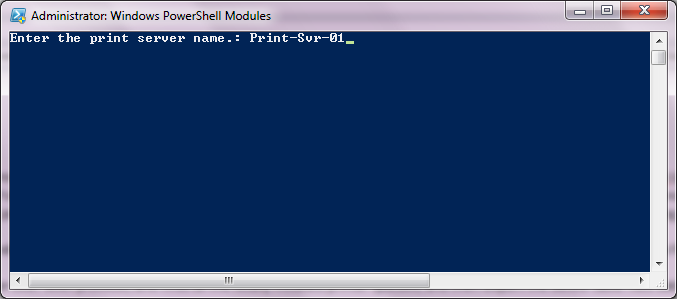
Once data gathering will be done, it will notify you on the PowerShell screen about the exported CSV file in the script directory.
I hope you enjoyed reading this blog post, as it helps a lot to maintain the record about the network shared printers, and at the event of disaster for rebuilding the print server.

 Azure Hybrid & Cloud Migration Blog
Leave a comment