Zahir Hussain Shah | MVP Exchange, CISSP
Microsoft Outlook is one of the software application, which remains open all the day on every desktop in the world, and sometimes Outlook configuration and its related issues takes time on the support side to fix, and make this support experience handy for the support personnels, Microsoft recently released Microsoft Outlook Configuration Analyzer, which is a nifty tool, first analyzer the user Outlook Profile, and then provide the analysis for the current configuration, and if it does find any error, it also tells you that how you can fix it.
You can download MOCAT from here
What does OCAT?
The Microsoft Outlook Configuration Analyzer Tool (OCAT) is a program that provides a detailed report of your current Outlook profile. This report includes many parameters about your profile and highlights any known problems that it found in your profile. For any problems that are listed in the report, you are provided with a link to a Microsoft Knowledge Base (KB) article that outlines a possible fix for the problem. If you are a Help Desk professional, you can also save the report to file so that the report can be viewed in the Outlook Configuration Analyzer Tool on another client where the tool is installed.
How to start OCAT?
To start the Outlook Configuration Analyzer Tool, click the Microsoft OCAT icon on the Start menu. If you do not see the Microsoft OCAT icon on the Start menu, look for it under Microsoft Outlook Configuration Analyzer Tool on the All Programs menu.
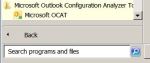

How to generate a report by using OCAT
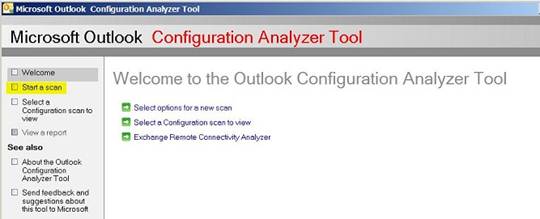
After OCAT is started, click Start a scan in the left panel to generate a report of your Outlook profile.
Expand this image
Note Microsoft Outlook 2003 is not a supported version of Outlook for OCAT. If you try to perform a scan on a client that has Outlook 2003 installed, you receive the following error message:
Error starting scan, please try again. If error persists, please send mail to ocatsupp.
This error message is shown in the following figure:

If Outlook is not running when you start a scan, OCAT displays the following notification.
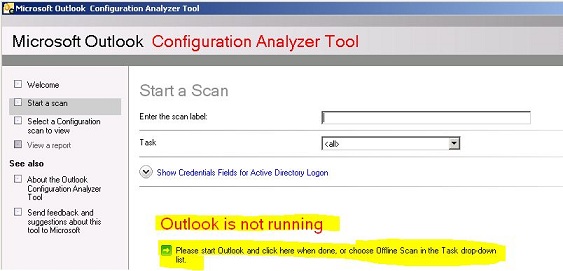
For the most complete OCAT scan report, make sure that Outlook is running when you start a scan.
In situations in which you cannot keep Outlook running long enough to start a scan, you can still perform a basic scan. To do this, select Offline Scan in the Task drop-down list, and then click Start scanning.
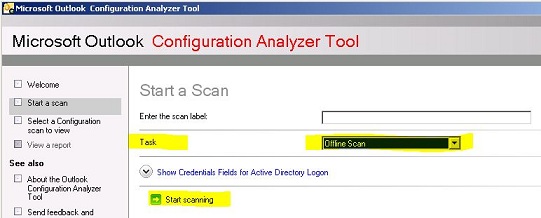
Although an offline scan does not contain as many profile details as an online scan, an offline scan may still provide enough information to help you resolve any problems that you are experiencing with Outlook.
For an online scan, you may receive the following prompt to give OCAT access to information that is stored in Outlook. To give this access, select Allow access for, specify 1 minute, and then click Allow.
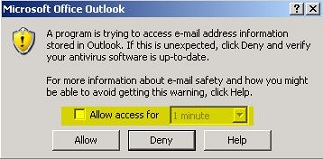
Note This prompt may not automatically take focus. To display this prompt, click the Outlook icon on the Windows taskbar.

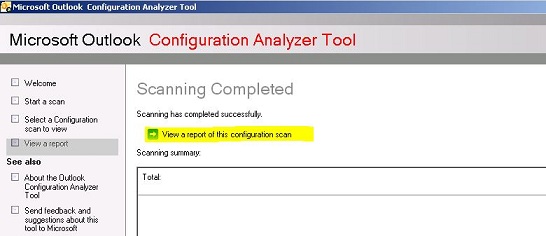
After the scan is complete, click View a report of this configuration scan to display the report that is generated by OCAT.
Cheers!

 Azure Hybrid & Cloud Migration Blog
Leave a comment