Author: Zahir Hussain Shah | MVP Exchange Server
Applies to: Hyper-V Live Migration is not working | CSV is not accessible from passive cluster nodes| Validate Disk Failover failed | Failed to write file data on cluster disk 0 partition 1, failure reason: The disk structure is corrupted and unreadable | Virtual Machine VM live migration did not succeed at the destination | Cluster resource ‘Virtual Machine VM in clustered service or application VM failed | Virtual Machine VM failed to start.
Microsoft Hyper-V Clustering Recommendation and Best Practices for Live Migration and Cluster Shared Volumes (CSV) – Quick Solutions Guide
This is my second blog post related to Microsoft Windows Server 2008 R2 Clustering for Microsoft Hyper-V 2008 R2 Clustering and High Availability, in my previous blog article for building Hyper-V 2008 R2 High Availability, in which I presented to you the links to a wonderful video series for building Hyper-V HA for creating Highly Available Virtual Machine work-loads with Hyper-V Live Migration and Cluster Shared Volumes.
In this article, I will walk you through the several post-implementation related issues and their resolution, which you may get encounter with your configuration and some of the best practices, for helping you to fix your problem, and get your highly available VMs running on Hyper-V Cluster.
Okay, now lets start here with each post-issue, I have seen occurs after Implementing Hyper-V Cluster with CSV and Live Migration, I will explain one by one.
1) Failed to write file data on cluster disk 0 partition 1, failure reason: The disk structure is corrupted and unreadable
By the way, it is not a post-implementation problem, but I would like to share this with you, this happened to me, while I was building my five nodes Windows Failover Cluster on Microsoft Windows Server 2008 R2 for Hyper-V, this issue is related to Cluster Validation failure for Failover Disks, it happened to my newly attached CLUTER DISKs (LUNs), which I formatted and made offline before I ran Cluster Validation, but I got the failure that “The disk structure is corrupted and unreadable.”
Problem:
Failed to write file data on cluster disk 0 partition 1, failure reason: The disk structure is corrupted and unreadable corrupted and unreadable.
Resolution:
To fix this problem, I formatted all the disks, made them offline again, and re-run the Cluster Validation Test, and this time it turned out as passed!
2) Live Migration Best Practices and Post-Implementation Issues and their Resolutions:
In this section, I will guide you the best practices for fixing issues related to the Live Migration, after the post-implementation of Windows Failover Clustering for Hyper-V with CSV:
I. Recommended Cluster Network Microsoft Failover Cluster Settings:
Lets assume you got two networks physical cards in your Server, as follows:
LAN Connected Server VLAN
Cluster Heartbeat Network Cluster Network for Live Migration
In the Failover Cluster Manager, you have to set the below settings for both of them:
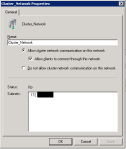
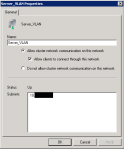
II. Recommended Cluster Network File and Printing and NetBIOS Settings:
As you know that disabling File and Printing Services and NetBIOS, for Cluster Internal Network, have always been a recommended practice, but with Live Migration and Hyper-V Clustering, it is required to turn on these both settings on the Cluster Network, which we will be using for Live Migration.
III. Refreshing Virtual Machine Configuration:
With my experience, while I saw that the Quick Migration was working but Live Migration was not working, so I gave a Refresh Virtual Machine Configuration from the Microsoft Failover Manager, and after that tried to give a live migration, and it worked, so you can say that after making any changes to VM (Highly Available) in Clustering, you should give Refresh to VM Configuration Cluster, so which tells the cluster that these are the changes made to the VM, and which directly interact with Clustering behavior of the VM.
IV. CSV- Cluster Shared Volumes behavior:
When you add CSV in the Microsoft Cluster Failover Manager for the support and funtionlity of Live Migration, you see a different behavior of these disk, as compare to the other type of storage on the Cluster Nodes, and over time, I have seen some misconception and misguided assumptions about these CSV LUNs, so let me explain the expected behavior of CSV LUNs on the Cluster nodes as follows:
a. Online / Offline: CSV LUNs will only be online on the Current Owner of the LUNs in the Cluster, e.g. as shown in the below image that only disk three is online and disk 1, disk 2 are both offline, is because that the Cluster Node 1 is the current owner of the DISK 3, and thats why it is showing here online, and both DISK 1, and DISK 2 are offline.
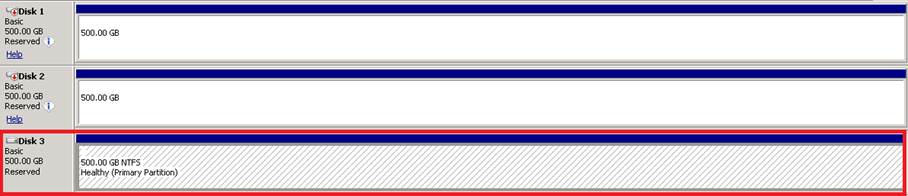
b. Reserved: When you add at LUN to Cluster as CSV, the Disk as become Reserved, means that it will only work for Windows Server 2008 R2 CSV functionality, where it is allowed for file-level locking, not the disk level.
c. Accessing CSV LUNs from Windows Explorer and over NetBIOS SMB session:
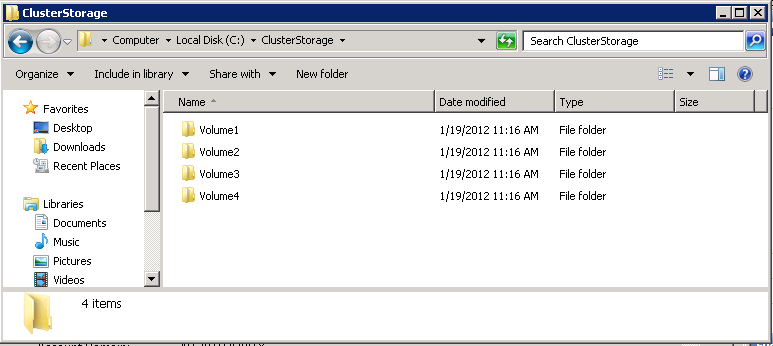
After adding the CSV LUNs to the Failover Cluster Manager in the CSV Tab, you will start seeing the below behavior in the C: drive of the Cluster Nodes, and when you will double click on the ClusterStorage, it will get buys, but will let you go inside the folder after sometime, depending on your Network speed and server performance, but as per expected functionality, you should be able to open this folder on all cluster nodes.
Additionally, while it is taking time to opening the folder, if you try to open the same location over SMB NetBIOS session, it will open it bit fast, but make sure that you enabled the File and Printer Sharing and NetBios settings on the Cluster Network, and others. E.g. \172.16.55.1c$ClusterStorageVolume1.
V. Same Hyper-V Virtual Network Settings on all Hyper-V Nodes in the Cluster:
Lets assume that we got five cluster node setup for Hyper-V clustering, and before building the cluster, as recommended we installed the Hyper-V role on these five cluster nodes, and as part of configuration, we will be creating Virtual Network in Hyper-V for VMs to communicate to the reset of the Network, and therefore we created a Network called Server-VLAN, and for allowing the any type of Migration, whether its a quick migration, live migration or VM move, it is required that you keep the same Virtual Network name on all Cluster (Hyper-V) nodes, because when the Virtual Machine moves in case of Live Migration with VM Configuration file, when the second node where you try to make the VM online, the migration process tries to open and make online the VM with the pre-configured VM configuration parameters, where if the Network Name would be different or the same name of Virtual Network (Server-VLAN example) is not there, VM migration and making the VM online will fail.
I hope with the all above explained as a best practices, will help you to make your Hyper-V High Availability Implementation a success project.
Cheers!

 Azure Hybrid & Cloud Migration Blog
Leave a comment