Tags: Install and Configure Windows Network Load Balancing (NLB) on Hyper-V Windows Server 2008 R2 for Exchange 2010 R2 | Configure NLB for Exchange 2010 R2 | Configure NLB for Exchange 2010 Client Access Array | Install and configure Windows NLB on Hyper-V Server for Exchange 2010
Installing Windows NLB Cluster for Exchange 2010 SP1 on Hyper-V Virtual Machines
As we know that now a days we all want to conserve physical server allocations, and always try to see any possibility where we can do virtualization, rather than simply going to allocate a Physical box for an application, and with the virtualization support for Exchange 2010, most of the organizations are going towards virtualizing their production Exchange systems.
Well, before we move forward to explain the solution, let me first direct you to the Exchange 2010 Virtualization Support Policy:
http://technet.microsoft.com/en-us/library/aa996719.aspx
In addition to the above TechNet article, I would also like to inform you that with the recent release of Exchange 2010 SP1, now Exchange 2010 UM role and Hyper-V Live Migration for Hyper-v nodes containing Exchange 2010 Mailbox DAG member VM are also supported, and for this you can look at my earlier blog post:
Microsoft Recommendations for CAS Array Load Balancing (Windows NLB / Hardware NLB):
After the recent evaluation, Microsoft recommended to use Hardware Load Balancing for Exchange 2010 Client Access Array, because they found that Windows NLB is not fully capable to cater the requirements for Exchange 2010 CAS Server, for more information, please see the below video, in which you will find all the relevant information:
http://channel9.msdn.com/Events/TechEd/NorthAmerica/2011/EXL307As long as W-NLB is concerned for Exchange 2010 Client Access Array, we are still using it, and H-NLB is always a better option, we small and medium size companies, sometimes, may not be able to have it, so therefore, lets go and discuss the various options, that how we can utilize the WIINDOWS NLB for load sharing our Exchange 2010 CAS Servers.
Configuration check-list:
1. Configure Hyper-V for Exchange 2010 CAS VM Network Card Configuration for Enable spoofing for MAC Addresses.
2. WNLB Feature Installation on Exchange 2010 CAS Nodes
3. Supported W-NLB Operations Mode by Microsoft for Exchange 2010 CAS Array
4. Configuring NLB on Exchange 2010 CAS Nodes
5. Creating Client Access Array
1) Configure Hyper-V for Exchange 2010 CAS VM Network Card Configuration for Enable spoofing for MAC Addresses.
I will here put some snapshots from my LAB Exchange 2010 CAS VMs Network Configuration, which you can put in your configuration and everything will work super fine.
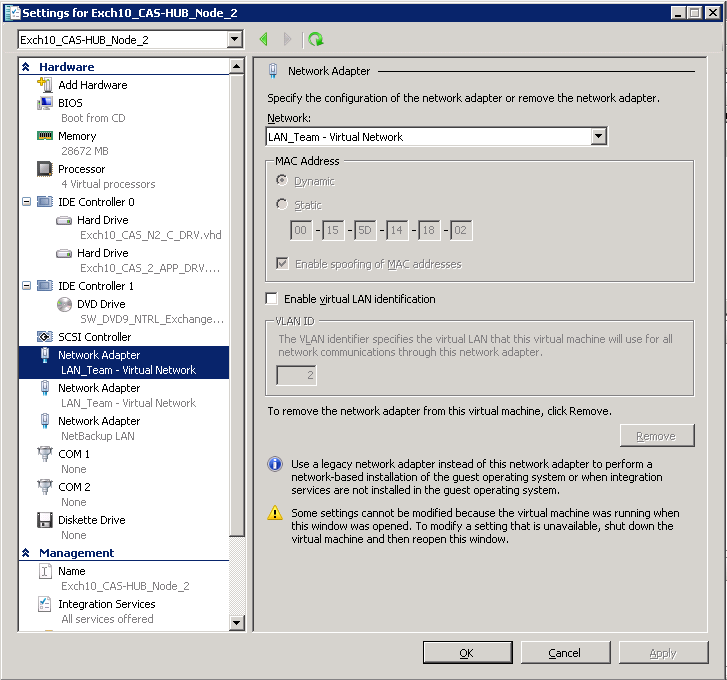
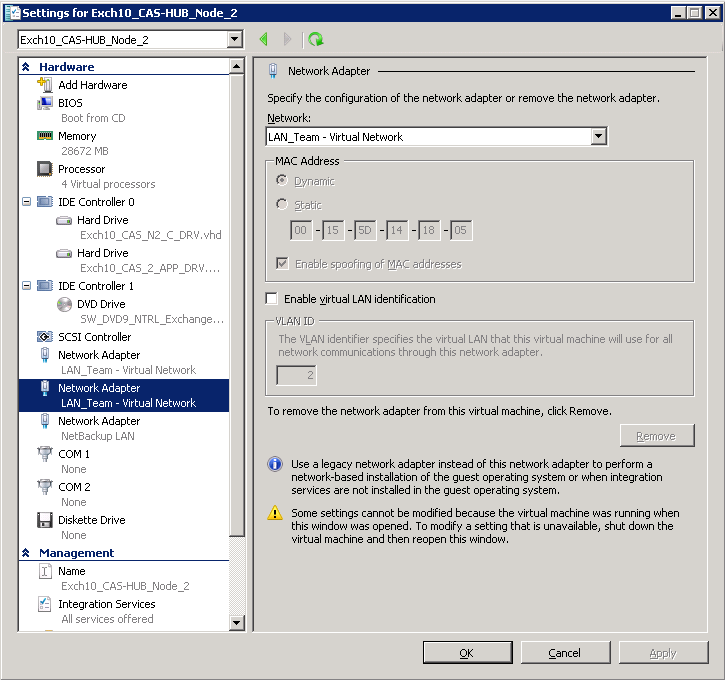
You can see in the below images, that Im using Two Network Cards in the CAS VMs, and I have bonded both the Virtual Network Cards to same Virtual Network, because Im using same IP Address Scheme on both the NICs (Network Card for Server VLAN as Public Network Card, and Private Communication for NLB Cluster), by using the same Network IP Addressing on both Public and Private Networks, I dont have to bother about Static Routes and stuff.
IMPORTANT: ENABLE SPOOFING OF MAC ADDRESSES
The only configuration you have to make is to check the Enable spoofing of MAC Addresses for the each Network Card added in your Exchange 2010 CAS VM.
Public Network for Exchange 2010 CAS VM:
Private (NLB) Network for Exchange 2010 CAS VM:
2) WNLB Feature Installation on Exchange 2010 CAS Nodes
You can install the W-NLB feature on both the Exchange 2010 CAS nodes from Server Manger.
Go to Server Manager, in the Features tab, right click and add new feature and install Windows Network Load Balancing.
3) Supported W-NLB Operations Mode by Microsoft for Exchange 2010 CAS Array
Make sure that while you configure W-NLB for Exchange 2010, you always select Multi-Cast as NLB Cluster Operation Mode, because Microsoft does not support Unicast as NLB Cluster operation mode for Exchange 2010.
4) Configuring NLB on Exchange 2010 CAS Nodes
Tasks needs to be performed for forming W-NLB Cluster:
I. Create a DNS A-Host record entery for your CAS ARRAY FQDN, lets say mail.abc.com.
II. After installing W-NLB feature on both the Exchange 2010 CAS nodes, now open Windows Load Balancing Manager.
III. Right Click on the top and create new Cluster
IV. Locate 1st Exchange 2010 CAS node and select the interface which you dedicate for NLB, remember, as I described above, that we are keeping same IP Addressing Scheme on both the Network Cards, so if you have 192.168.1.23/24 for Public Interface, then you have the 192.168.1.25/24 on the private interface (NLB interface).
V. After selecting interface for NLB, now give IP Address for NLB Cluster, then it will ask you the FQDN for the Cluster, put mail.abc.com, and in the Cluster operation mode choose MULTICAST.
5) Creating Client Access Array
Go Exchange 2010 Management Shell and run the below commands for creating client Access Array:
New-ClientAccessArray FQDN mail.abc.com Site Your-AD-Site-Name Name mail.abc.com
And with the completion of last step, our Client Access Array and Windows NLB Cluster for Exchange 2010 Client Access Server has completed successfully.
I hope this article will help lots of people, because in which I sum-up all the required configuration for your Exchange 2010 CAS Servers.
Cheers!
 Azure Hybrid & Cloud Migration Blog
Leave a comment